THE EGIRLS JOURNAL
eGirl Stream Setup in 2026: Audio, Lighting and Mobile-Friendly Scenes
A practical beginner eGirl streaming setup guide: choose a camera and mic, light a small room, frame for mobile and desktop, and test OBS before going live.
Start with a stream format you can maintain
An eGirl stream can be gaming, art or just chatting; choose the on-screen view before buying equipment. Twitch's streaming FAQ describes a stable internet connection and a broadcast tool as the basics, and says a mic or camera is optional. Start with whichever device you already have. A headset mic and a phone or webcam are enough to test a small setup; if you prefer avatar- or screen-first content, leave the camera off.
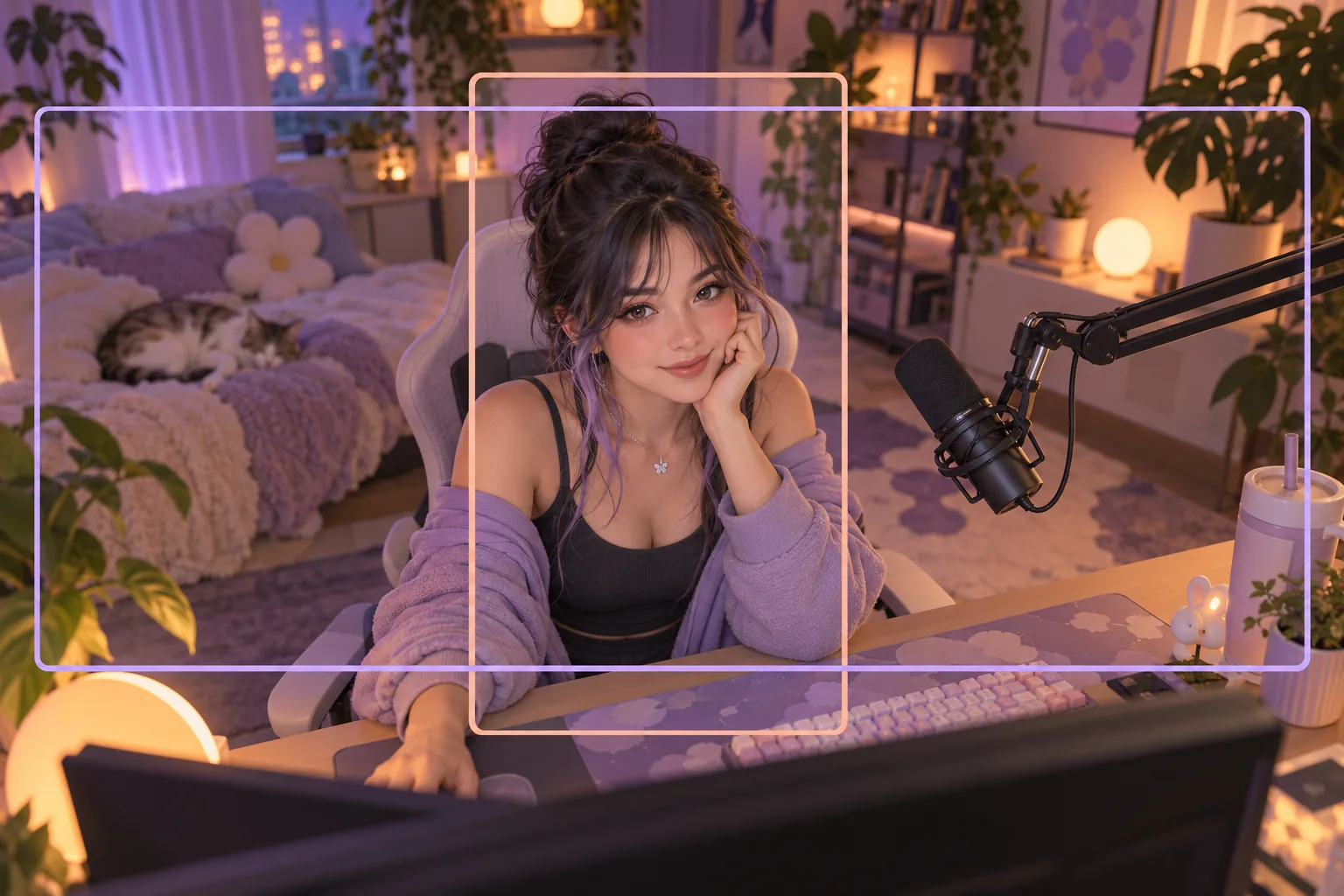
Twitch’s June 17, 2026 dual-format announcement says creators can make custom horizontal and vertical layouts and reports that 70% of new Twitch viewers arrive on mobile. Treat that as a Twitch-specific reason to check vertical framing, not a universal audience statistic. If your account and encoder support both canvases, keep your face, game action and alerts within the central area shared by both crops. If they do not, build a clean horizontal scene first and cut a vertical version from a test recording. Twitch’s 2K feature is limited to Partners and Affiliates, so it is not a beginner requirement.
Make only the scene you need: gameplay plus a small camera, camera and simple background for just chatting, or a captured drawing window plus voice for art. OBS’s Auto-Configuration Wizard can suggest starting stream settings based on your hardware, intended use and network. Its official quick-start guide is at obsproject.com/kb/quick-start-guide; check Twitch’s current setup page for account-specific requirements.
Make your voice clearer than the game audio
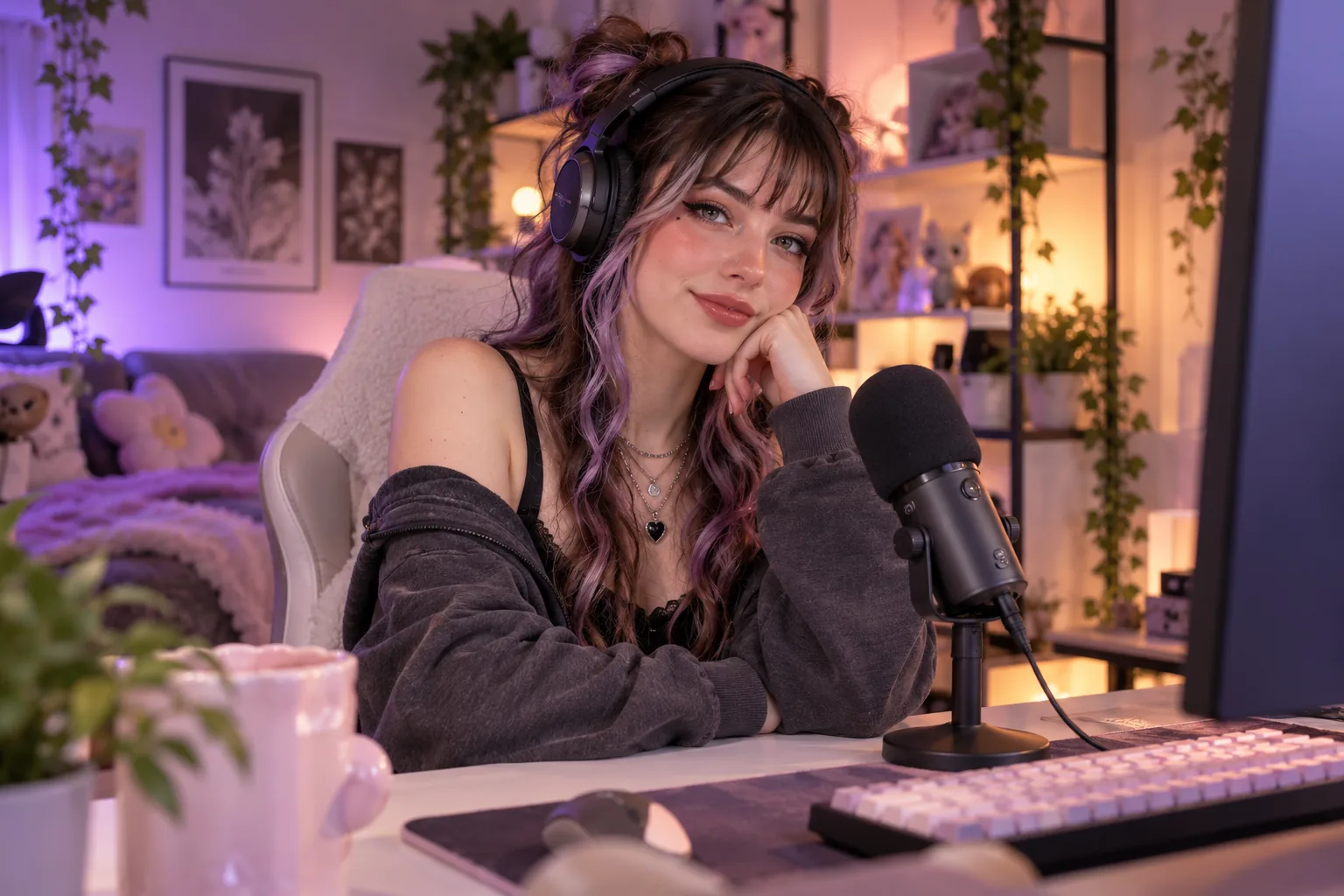
The clearest eGirl stream setup is one where viewers can understand your voice over game, alerts or background sound. Begin with a headset or microphone you already own, place it near your mouth and angle it away from keyboard or fan noise. Talk at normal volume while watching the OBS Audio Mixer: the intended mic meter should move, and desktop audio should stay lower when you speak. Mute duplicate sources so the same mic is not captured twice.
OBS’s current Audio Mixer Guide describes green, yellow and red meter zones, with red near clipping. For an ordinary speaking voice, aim for a healthy meter without peaks hitting red; exact levels depend on the mic and room, so listen as well as watching the meter. Record a short sample, listen back on headphones and a phone speaker, and adjust one control at a time. If the voice sounds hollow, move the mic closer or add soft materials to the room; if game audio masks words, reduce that source instead of boosting everything else.
You do not need a studio microphone to start. A headset positioned near your mouth may sound clearer than a distant, expensive mic. Focus on placement, a consistent speaking distance and a quick record-and-listen check before spending on upgrades.
Light the frame, protect your privacy and rehearse
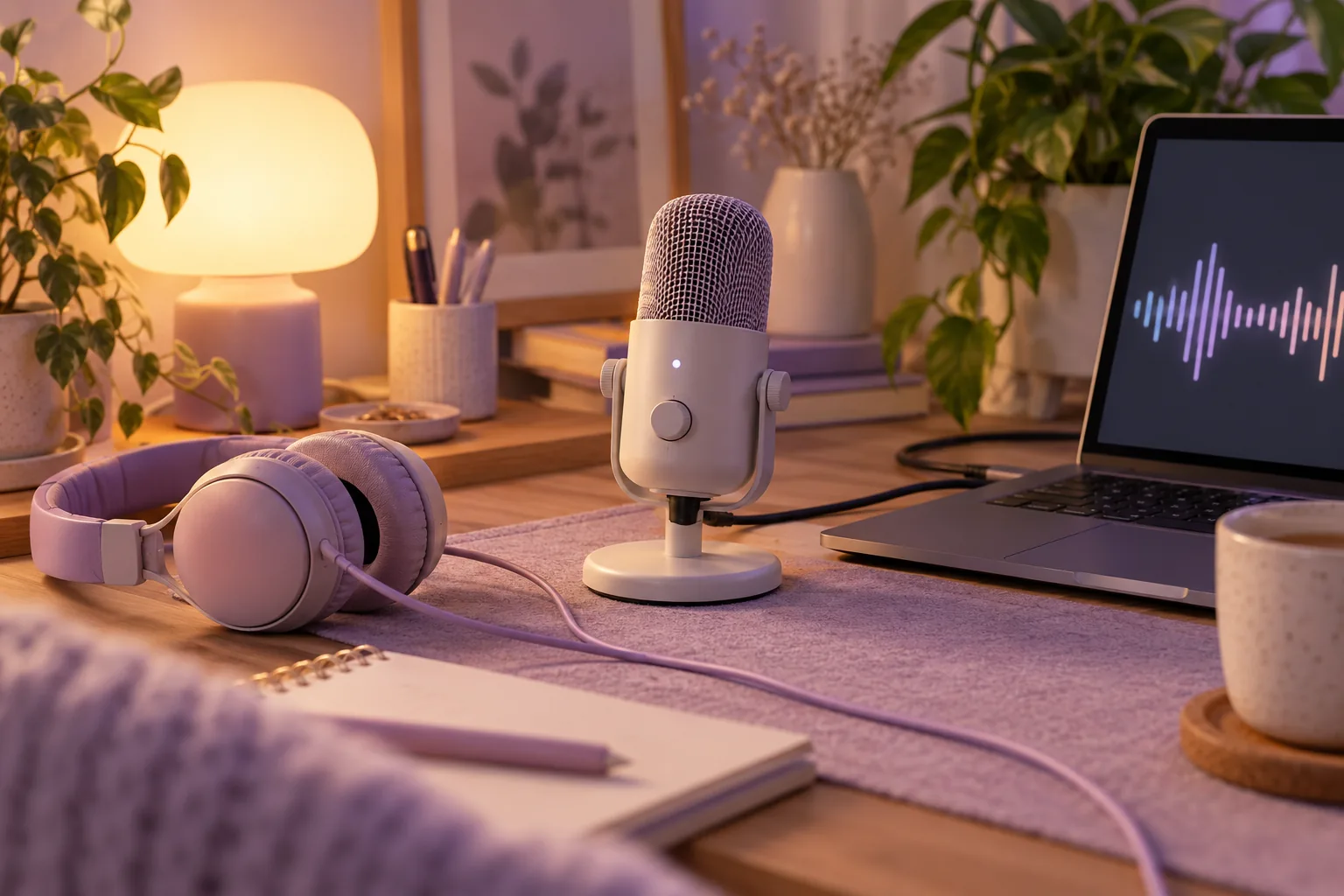
Lighting and framing give an eGirl stream its recognizable look, but a ring light is not required. Face a window or soft lamp from just off camera; use a purpose-made diffuser rather than pointing a harsh bare bulb at your face. Keep the background a little darker than your face and choose a few intentional details. Check how makeup, hair and darker outfits look on camera; avoid overexposing skin or losing detail to colored LEDs.
Before going live, make a five-minute local recording and watch it in both wide and phone-sized views. Check that captions, alerts and game UI stay visible in the narrow crop; look for flicker, echo, clipping, accidental desktop capture, account names or notification previews. OBS’s Quick Start Guide recommends testing for a few minutes before streaming. A rehearsal gives you a chance to fix small problems while the recording is still private.
Set a simple first-stream scene and a fallback break screen, then leave the layout alone until the test is watchable. To browse eGirl creators after you finish planning, use the eGirls Stream directory at /creators/ and the official profile links at /socials/. For viewer-side discovery, the related guide at /blog/where-to-watch-egirl-streams-and-follow-socials/ explains how to find streams and official socials.